DocumentationSetting up your Deepgram API key
Setting up your Deepgram API key
Connect Deepgram to Whiskers for fast cloud transcription. Five-minute setup.
Whiskers can use Deepgram for fast cloud transcription. To plug it in, you'll create a Deepgram account, add billing, generate an API key, and paste that key into Whiskers. The whole thing takes about five minutes.
You'll need:
- An email address (or Google / GitHub / Azure account)
- A credit or debit card
- About 5 minutes
Step 1 — Go to deepgram.com
Open deepgram.com in your browser and click Sign Up Free in the top-right corner.

Step 2 — Sign up or log in
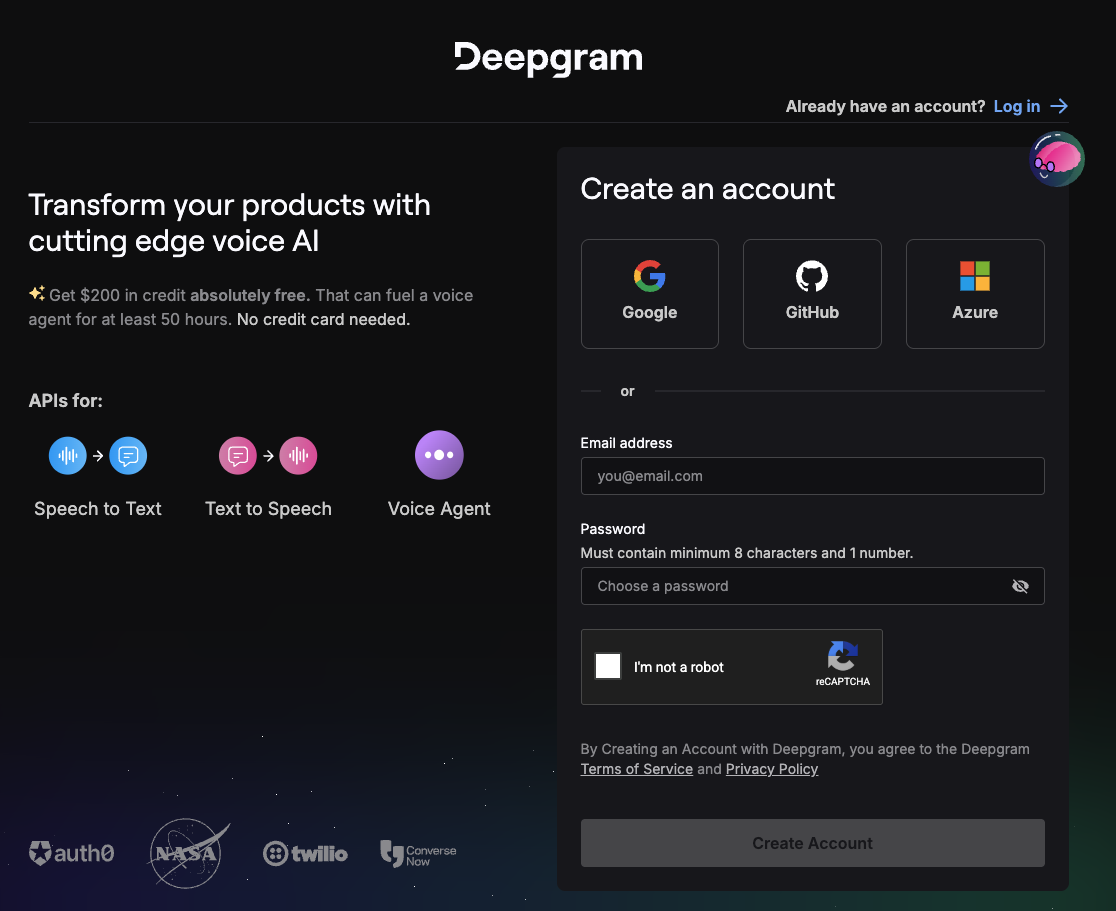
You'll land on Deepgram's account page. Pick whichever option you prefer — Google or GitHub is usually fastest. If you already have an account, click Log in in the top-right.
Step 3 — Open your dashboard
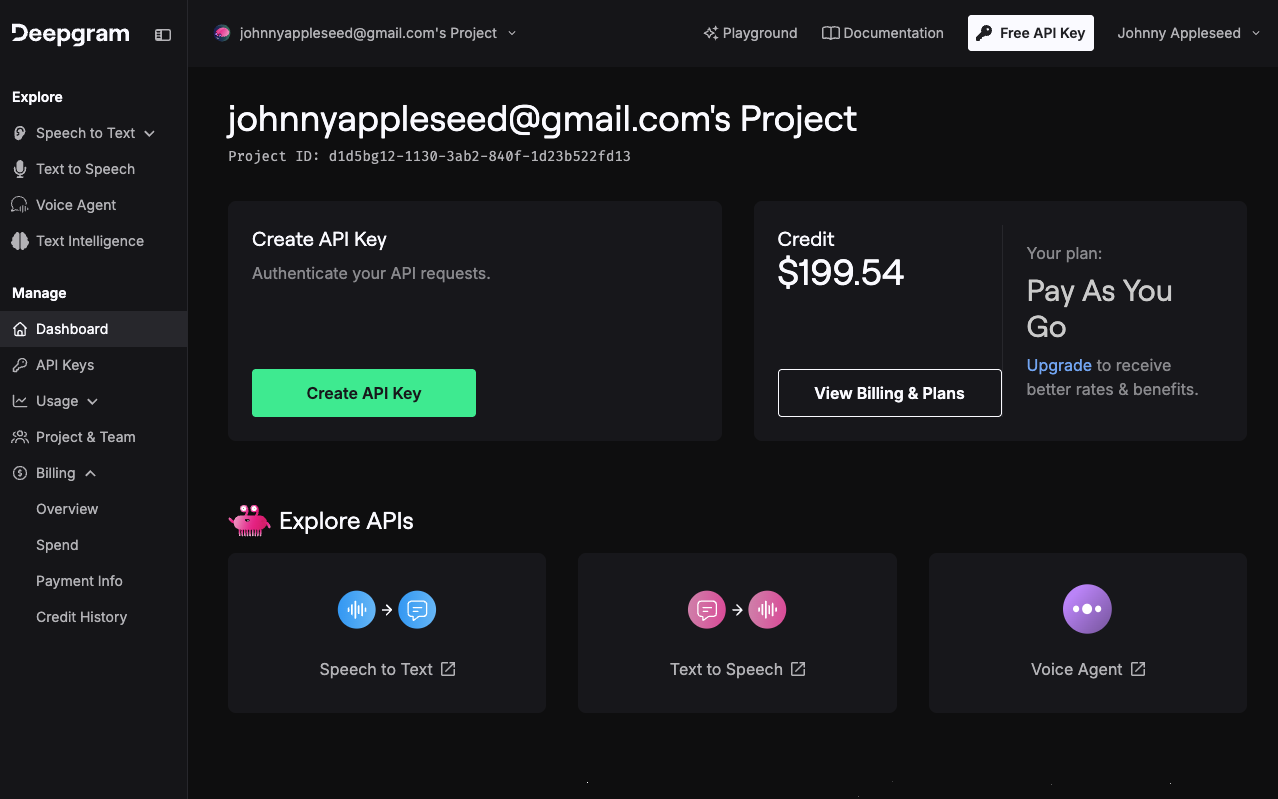
After signing in, you'll see your Deepgram project dashboard. Before relying on the API key in Whiskers, add payment information so transcription keeps working as your account usage changes.
Step 4 — Add payment information
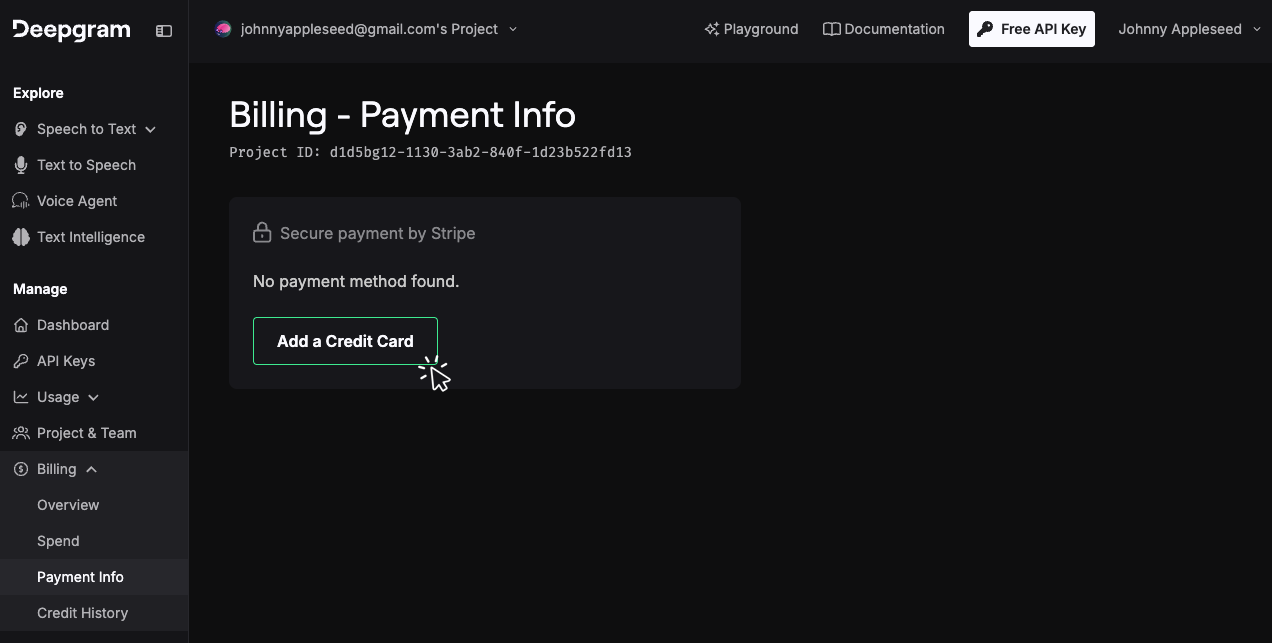
In the left sidebar, open Billing, then click Payment Info. Click Add a Credit Card and follow the Stripe checkout flow. Deepgram pay-as-you-go is metered — you'll only be charged for what you use.
Step 5 — Create an API key
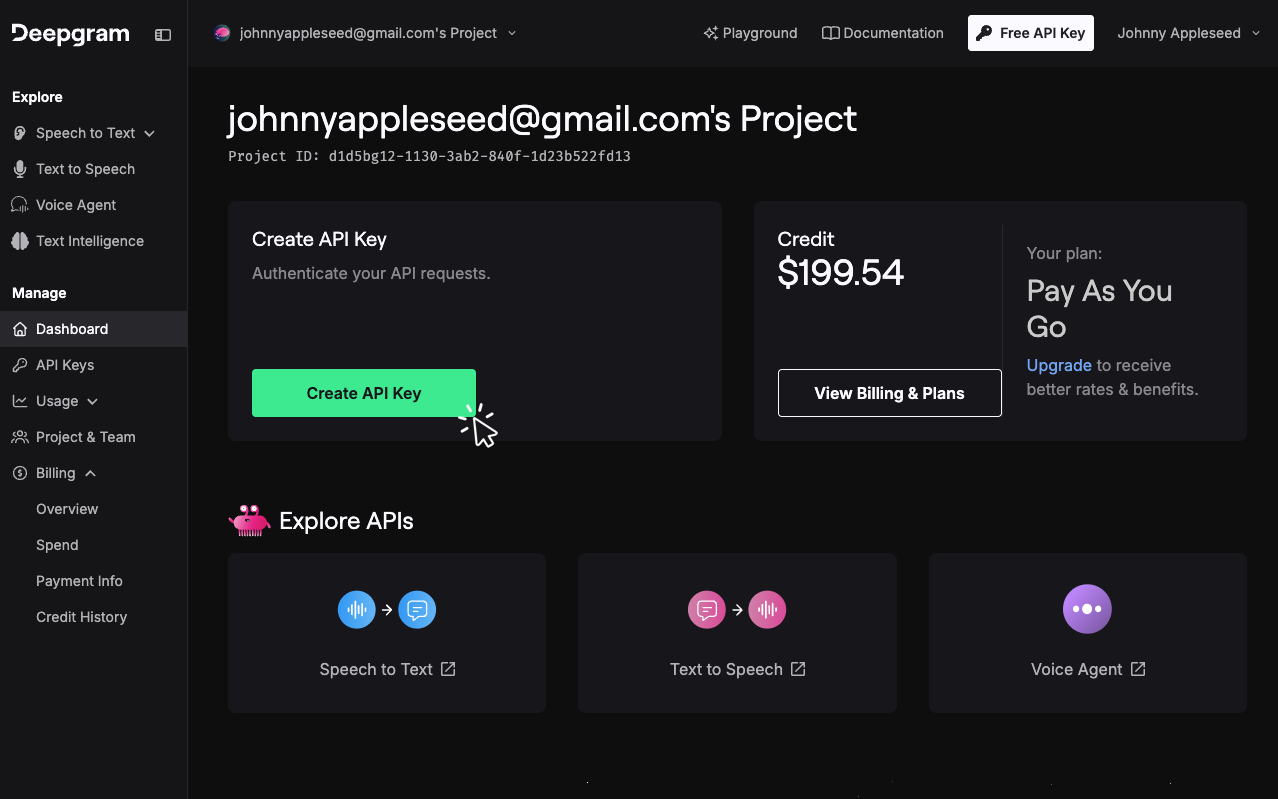
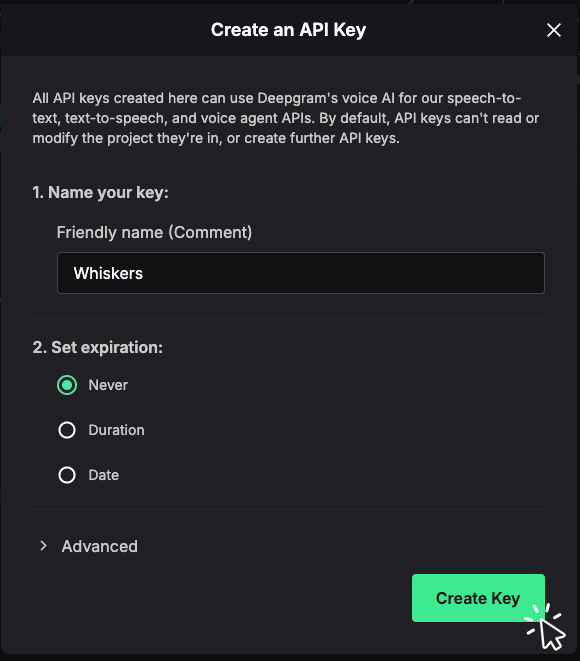
Return to the Dashboard and click Create API Key. You can also use the Free API Key button in the top navigation if it appears in your account.
Step 6 — Name it "Whiskers"
In the dialog, set Friendly name (Comment) to Whiskers so you can recognize it later. Leave Expiration set to Never unless you specifically want the key to stop working after a duration or date. Click Create Key.
Step 7 — Copy your key right now
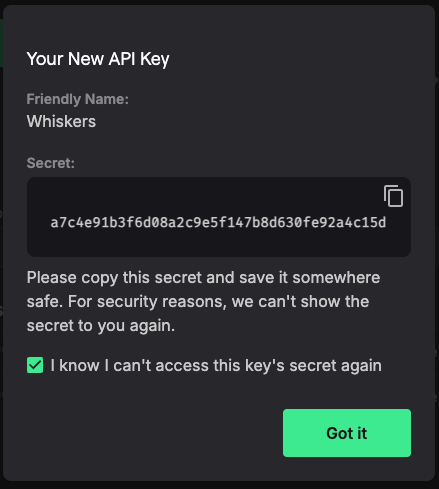
⚠️ Copy the key before closing this dialog. Deepgram only shows the secret once. If you lose it, you'll have to delete the key and create a new one.
Click the copy icon next to the secret, then paste the key somewhere safe (a password manager is ideal). Check I know I can't access this key's secret again, then click Got it.
Step 8 — Confirm the key exists
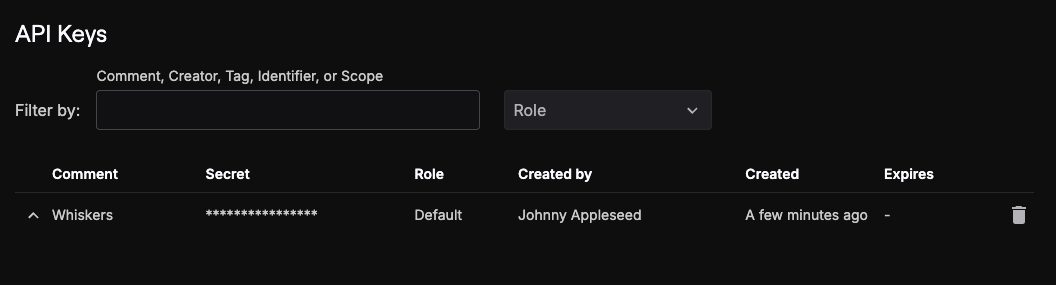
You'll see your new Whiskers key in Deepgram's API Keys list. The secret is now hidden, which is expected.
Step 9 — Add the key to Whiskers
Open Whiskers and go to Settings → API Keys. Expand Deepgram, click Add Deepgram Key, name it Whiskers, paste the key you copied from Deepgram, and click Save.
To use Deepgram for transcription, go to Settings → Models → Cloud API, choose a Deepgram model, and confirm it is using the key you just saved.
Troubleshooting
I forgot to copy the key. No problem — delete it from the API Keys list and run through Step 5 again.
The key isn't working in Whiskers. Double-check that:
- You pasted the entire key from Deepgram.
- The key is saved under Settings → API Keys → Deepgram in Whiskers.
- Your selected cloud transcription model is a Deepgram model in Settings → Models → Cloud API.
- Billing is set up in Deepgram (Step 4).
I want to rotate or revoke the key. Go back to Deepgram's API Keys list, click the trash icon on the row, and create a new key.